This setting is only available in Kanbanoo v2.15.0 or later.
Motivation
When M-Files objects have the M-Files built-in Deadline property (ID 42), Kanbanoo will display that date on the corresponding card in the footer and will highlight it colored: If the deadline is today, it will be highlited in yellow. If the deadline is past, it will be highlighted in red - unless the column is set to Set as Done (green line above column name). If the deadline is far away or the column is Set as Done, no highlighting will occur.
To improve awareness of the deadline in Kanbanoo v2.15.0 you can extend the duration of yellow highlighting before the deadline in terms of number of days.
What It Will Do
The yellow highlighting of an approaching deadline on Kanban cards will occur earlier by a configurable number of days.
How to Change the Number of Highlighted Days Before the Deadline
Changing this setting requires the Manage Common Views role as it will apply to all users in the current vault.
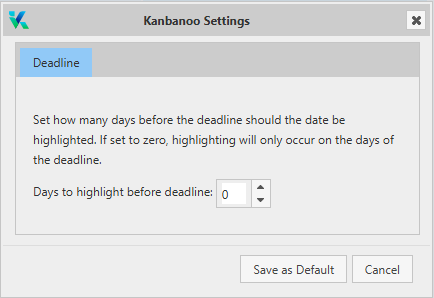
In Kanbanoo, click on the hamburger menu in the top right corner and select the Settings menu item. The Kanbanoo Settings dialog will open.
In the Deadline tab, change the Days to highlight before deadline to a number greater or equal to zero.
A value of zero (the default) will result in highlighting only on the day of the deadline. A value of two will highlight on the day of the deadline and the two days prior, for a total of three days of yellow highlighting.
Press Save as Default to save the new setting and close the dialog.
Your Kanbanoo board should reload automatically with the new setting. Other users will need to reload manually or exit and re-enter Kanbanoo to see the change.